The add-on automatically monitors all new orders in your e-shop and lets you define rules that trigger order status changes. Its primary purpose is to track unpaid orders and switch them to the correct status so that Shoptet sends an automatic payment reminder email to the customer.
Setup steps:
- Install the add-on. Go to the add-on purchase page in Shoptet Marketplace and click Install.
- Create a new order status in Shoptet. Go to Settings → Order statuses and create a new status (e.g., "Unpaid - reminder") or reuse an existing one.
- Create an email template in Shoptet. Go to Settings → Emails → Automatic sending and attach an automatic email to the newly created order status. The email should include payment instructions and optionally a payment button.
- Create a plan in the add-on. In the NotPaidTracker add-on, create a new plan where you configure which orders to track, how long to wait, and what status to switch them to. The plan activates immediately upon creation.
For each plan you can configure:
- Order statuses the add-on should watch.
- Payment methods the add-on should watch.
- The status the order should transition to after the configured period, triggering an automatic email.
Why do it this way? The add-on works by monitoring orders and switching their statuses. Shoptet has its own automation that automatically sends emails based on order status changes. So when the add-on changes a status to "Unpaid - reminder", Shoptet automatically sends the email you configured for that status. This way you've created automation without any coding.
What you need to set up in Shoptet:
- Create a new order status (or reuse an existing one) that orders will automatically transition to when they remain unpaid for the configured period.
- Attach an automatic email to that status (Settings – Emails – Automatic sending – Order statuses). See recommendations below.
The add-on catches the creation of a new order and schedules a check after the configured number of minutes. If the order still meets the conditions (status, payment method, unpaid) at that time, the status is switched.
When to use IntraDay? This type is suitable for online payments (card, e-wallet) and express payments that should be resolved within minutes. It's not suitable for bank transfers where you're waiting days.
Why is timing based on order creation? Because with online payments you expect confirmation within minutes. A short time window quickly reveals customers who decided not to pay or had a payment issue.
Special case: What if the payment method is unknown? If a customer creates an order without selecting a payment method (which sometimes happens), the add-on schedules a check for ALL your plans and at check time it re-validates whether the payment method now matches. This prevents errors - the order won't change without reason.
The add-on catches the creation of a new order and schedules a check for a specific day and time. If the order still meets the conditions at that time, the status is switched.
When to use NextDays? This type is ideal for bank transfers. If you expect a customer to pay within 5 days, set the check for exactly 5 days.
Why only business days? Weekends are typically not when you want to send reminders. When an order is created on Friday and you want to give the customer 3 days to pay, it's not good to send a reminder on Monday. Instead, the system waits until Wednesday if you have that option enabled. This behavior is configurable.
Special case: What if the order arrives after the scheduled check time? If an order arrives at 10:00 AM but the plan is set to check at 8:00 AM on the same day, the check is scheduled for the next available time slot (typically the next business day at 8:00 AM). This prevents timing errors.
The add-on monitors order update events and triggers immediately when an order is marked as paid. At execution time it re-validates the plan conditions (payment method, order status) before switching the status.
When to use On Payment?
This type is useful for post-payment automation — for example, switching an order to a "Processing" state that triggers a thank-you or dispatch confirmation email to the customer.
Special case: On Payment plans ignore the "Track only unpaid" filter because payment itself is the trigger.
A separate set of tracking plans for invoices — both regular invoices and proforma invoices are tracked. Unlike regular plans that count days from when an order was placed, these plans work from the invoice due date — so the check runs at a time relative to when the invoice is actually due.
When to use Invoice Tracking?
Useful when your reminder timing should align with the invoice due date rather than the order creation date. For example, you can send a reminder a few days before the invoice falls due, or follow up a few days after the due date has passed.
Special case: The configured offset can be negative (check runs before the due date) or positive (check runs after it). Setting it to zero triggers the check on the due date itself.
A detailed guide for configuring emails with all options based on payment methods is available on the Shoptet support page. Shoptet support page.
Detailed guide: Shoptet configuration
1. A dedicated status for marking orders as unpaid and triggering an automatic email:
- Creating a new order status: Go to Shoptet admin → Settings → Order statuses.
- Click New status and enter a name (e.g., "Unpaid - reminder"). Nothing else is needed.
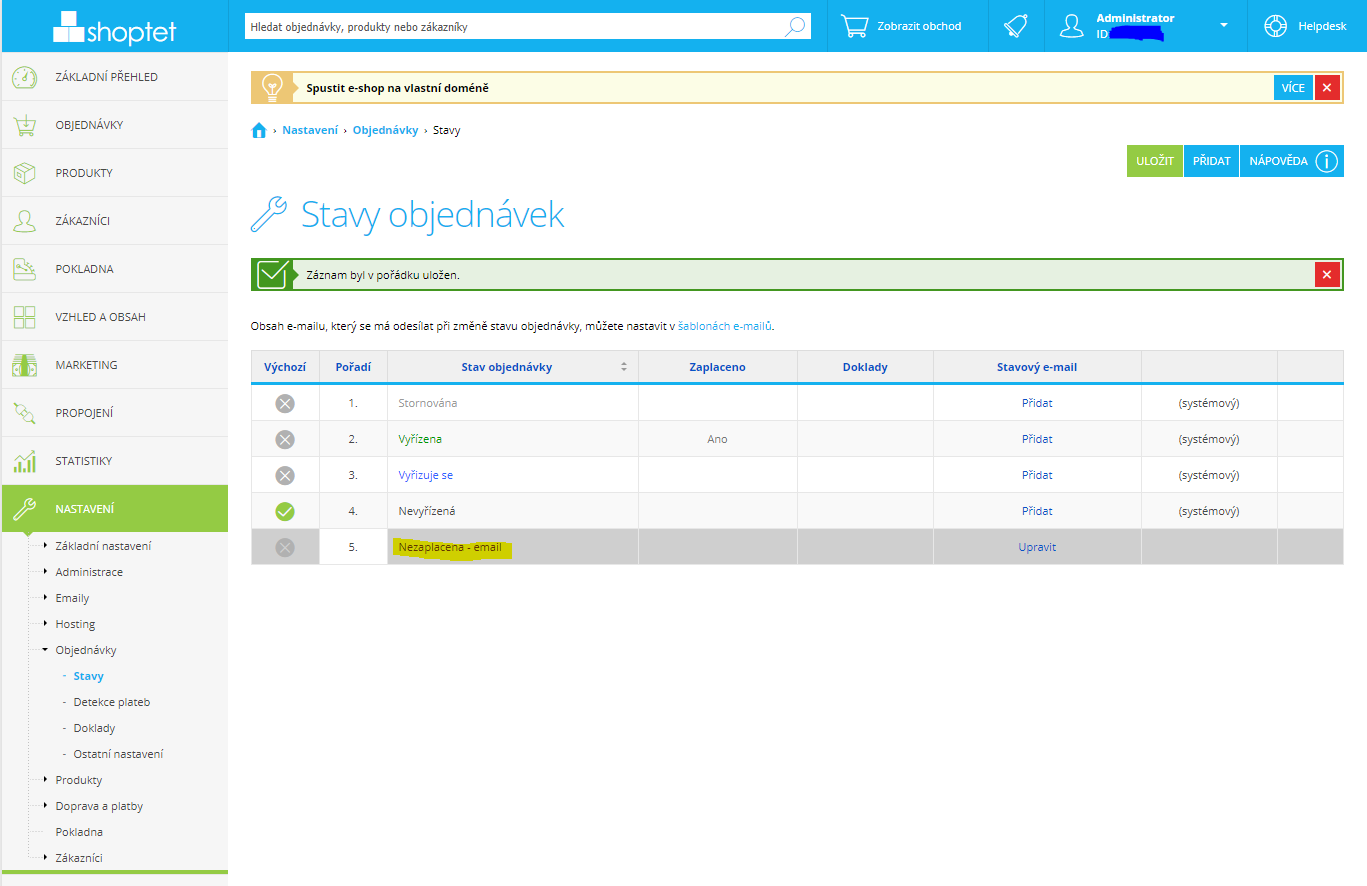
2. Configuration example for Bank Transfer and GoPay payment methods
- Attaching an automatic email: Go to Shoptet admin → Settings → Emails → Automatic sending → Order statuses.
- Select the newly created order status from the list.
- Fill in the email content with a payment reminder and include payment information (payment link, account number, etc.).
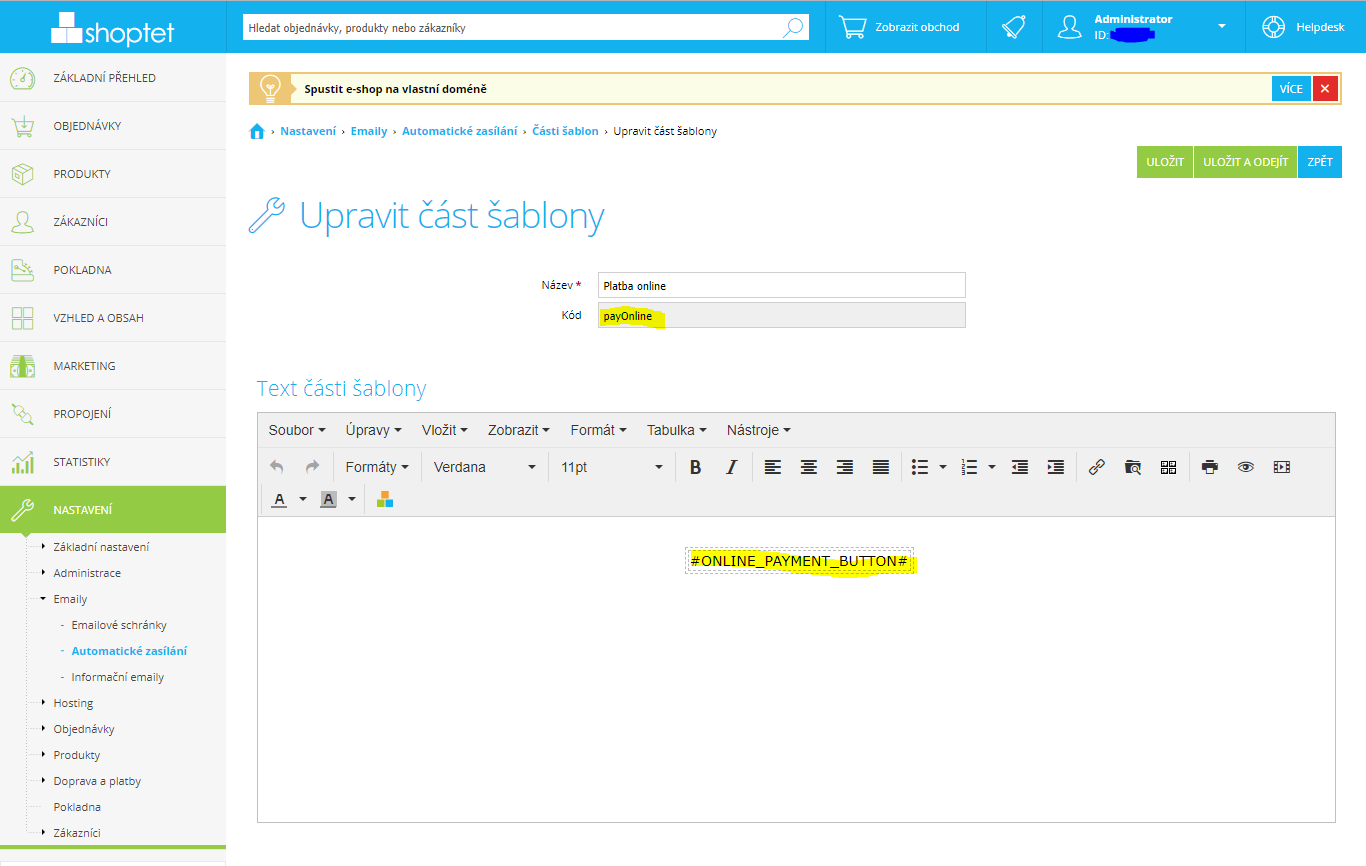
3. Template parts configuration:
4. Creating an email using the defined template parts:
In this case, if the order uses the Bank Transfer payment method, the email will display the bank transfer payment details. If GoPay is chosen, the email will include a button linking to the payment gateway. Depending on the payment methods used in your e-shop, define the appropriate lines with references to the template parts.
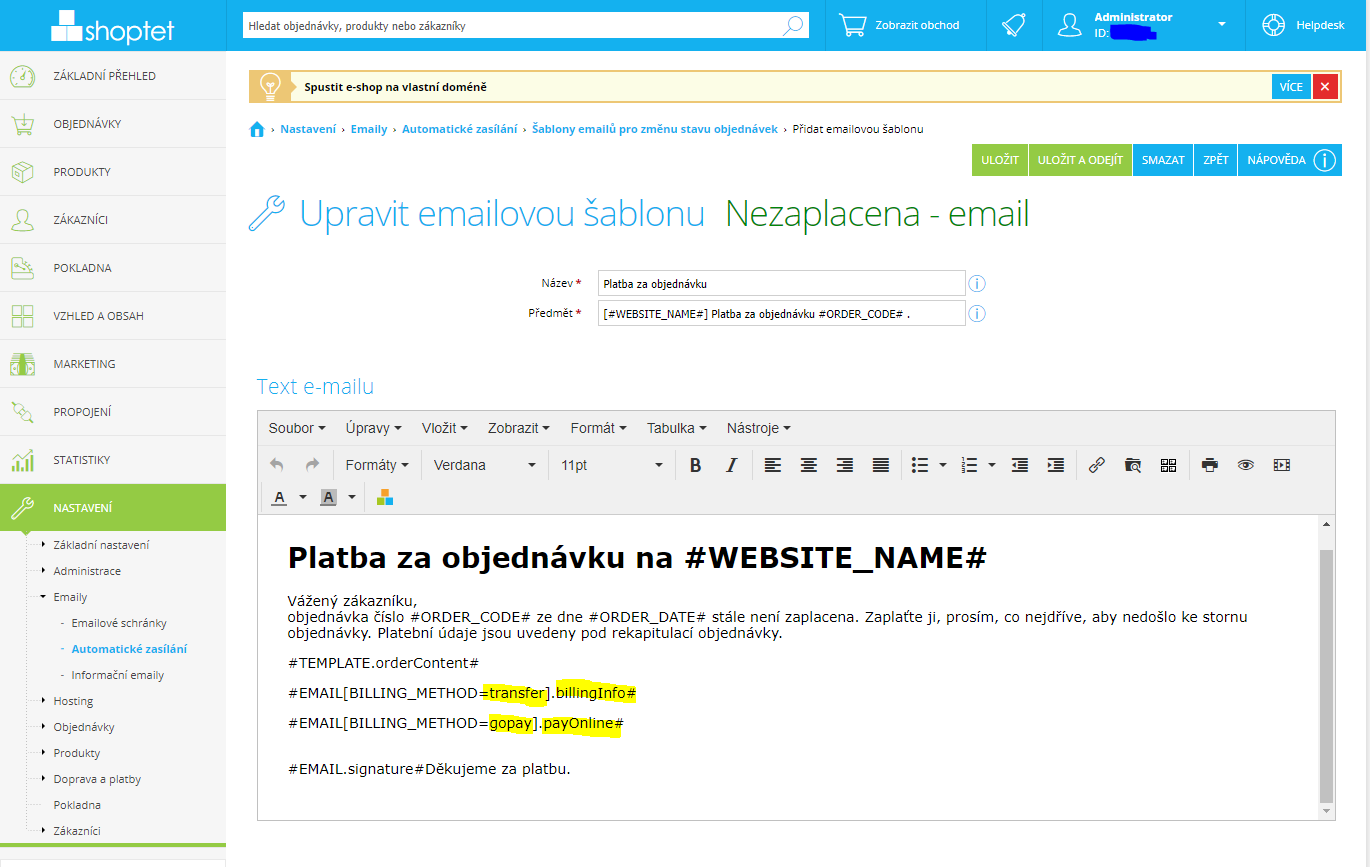
Why use template parts? They allow you to create one email that automatically adapts its content based on the payment method selected in the order. So writing one email is enough for all your payment methods.
The plan is active but the email wasn't sent. What happened?
Check that an automatic email is configured for the target status in Shoptet admin (Settings → Emails → Automatic sending → Order statuses). The NotPaidTracker add-on only changes the order status. Sending the email is Shoptet's job - if the email isn't configured, Shoptet won't send it. Also verify that the order actually changed to the target status (check the order history).
The status changed but the order was already paid. Why?
The add-on re-checks the payment status at the scheduled check time. If this happened, the payment confirmation likely hadn't reached Shoptet yet (for example, bank transfers take longer to process). Increase the check delay to give confirmation more time to reach Shoptet. Or check that your timezone is set correctly in the admin.
I changed the plan. Which orders will be affected?
Plans are evaluated at check time using the current plan settings. If you changed the conditions of the plan (payment methods, source or target status), already-scheduled order checks will run with the new settings. However, the initial scheduling of checks happens when the order is created, so changes to timing will only apply to orders created after the plan was changed.
Why are checks delayed past the scheduled time?
The add-on works efficiently with our server resources. Under normal load, jobs run within seconds of their scheduled time. Under high load, there may be a brief delay (usually up to 1 minute). This is normal and not an error. For NextDays type plans, checks run within the specified hour, not at the exact minute. So if you schedule a check for 8 AM, it will run between 8 and 9 AM (in most cases within the first quarter of the hour).